
Find an asset on the map
Every asset with a tracker is in the list on the left and on the map on the right. Search for one, press it, and its card tells you when it was last heard from.
Search the list
Type part of the asset's name or fleet number in Find an asset. The list shortens as you type.
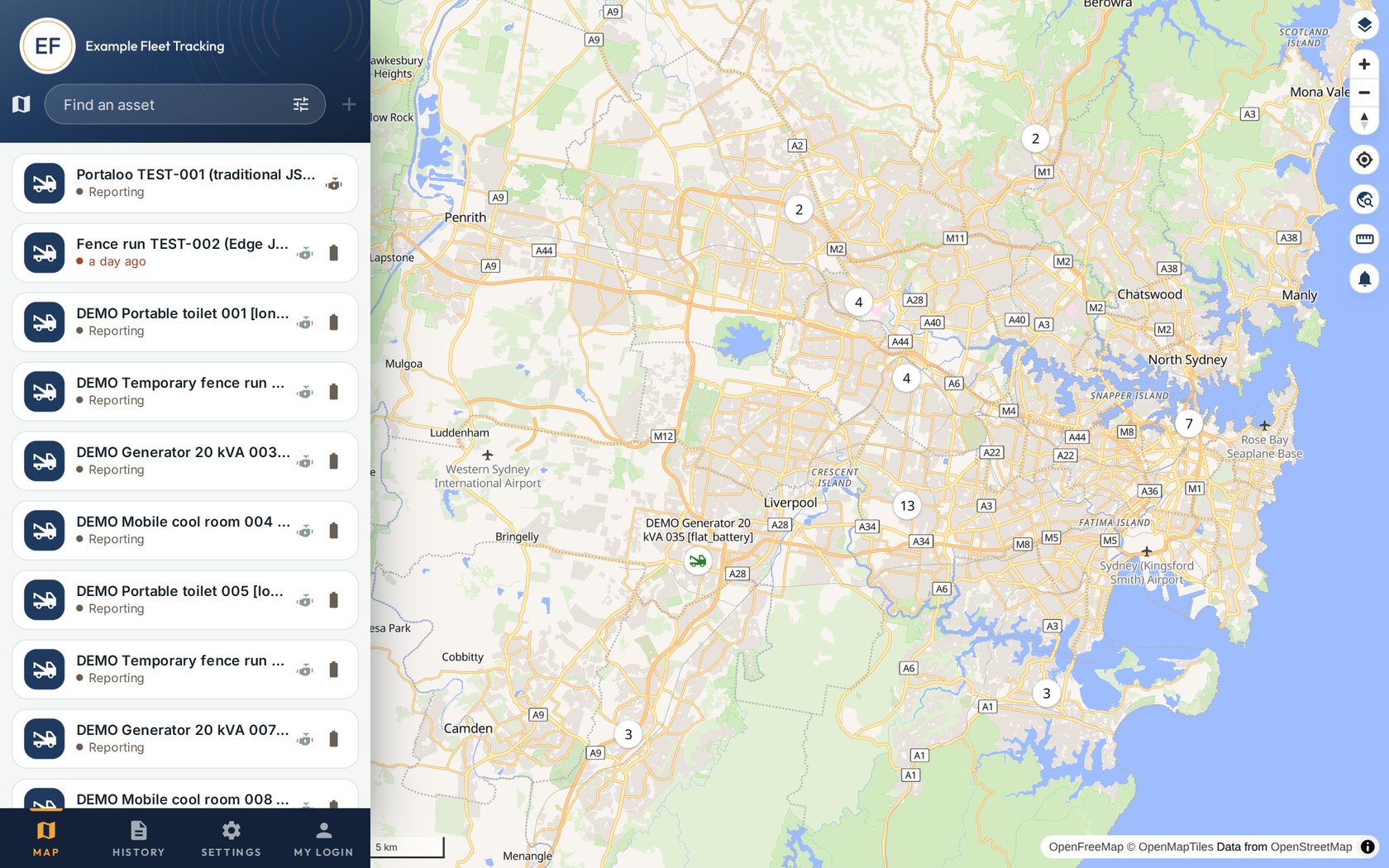
Your fleet. A circle with a number means several assets are close together: zoom in to split them. Press the asset
The map moves to it and a card opens.
On the card What it means Last located When the tracker last worked out where it is. Where Its position. Shown as map coordinates for now. Speed How fast it was moving at that moment. Zero for anything parked. Distance travelled How far it has travelled since the tracker was fitted. 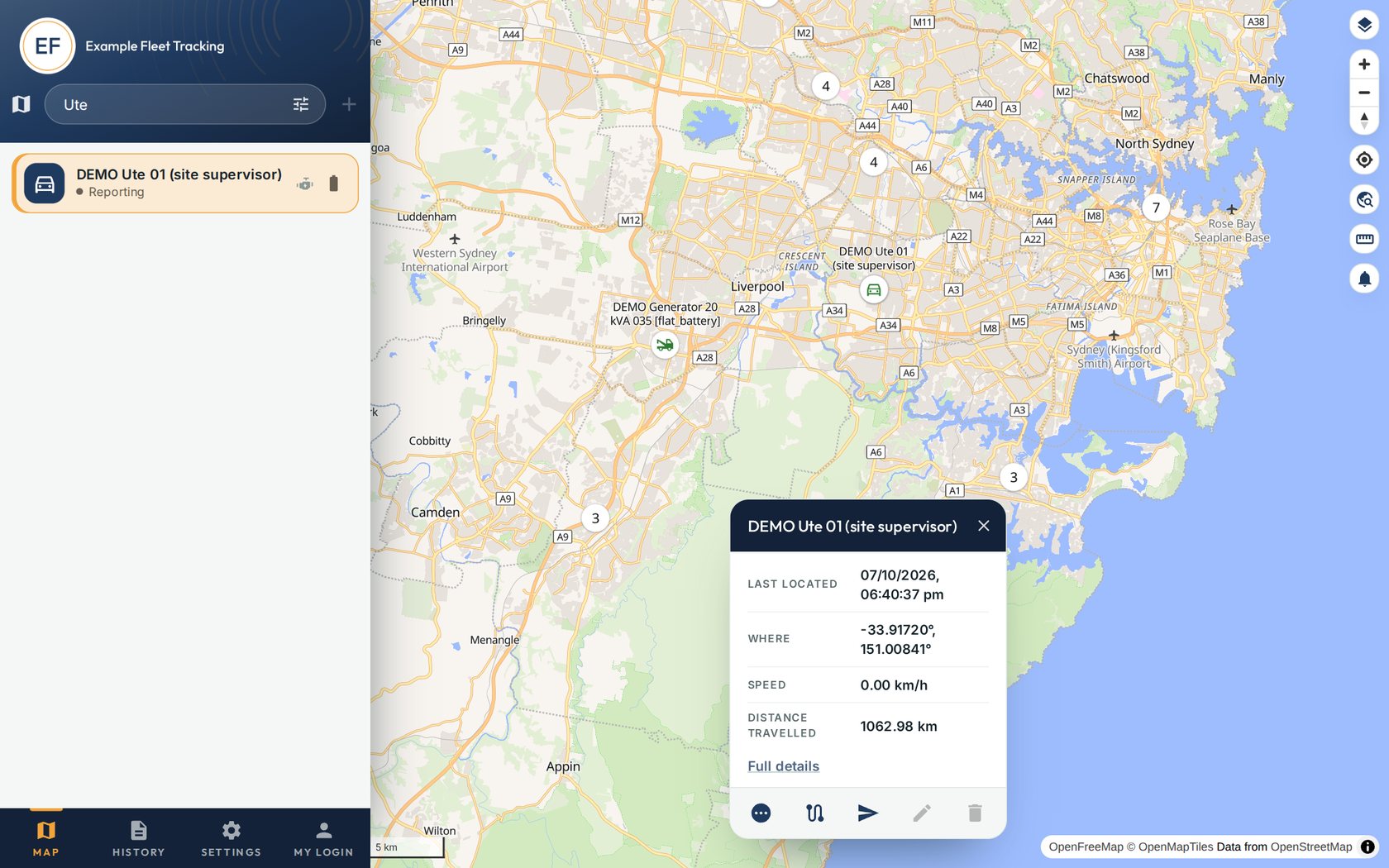
The card for one vehicle. Press Full details for battery level and everything else the tracker sent. Read the colour under the name
Green, Reporting means it has reported recently. Red, with a time means that is how long since it was last heard from.
Good to knowA battery tracker on a toilet or a shed reports about once a day, to make its battery last for years. So "a day ago" is normal for those. A wired tracker on a vehicle reports much more often while it is moving.